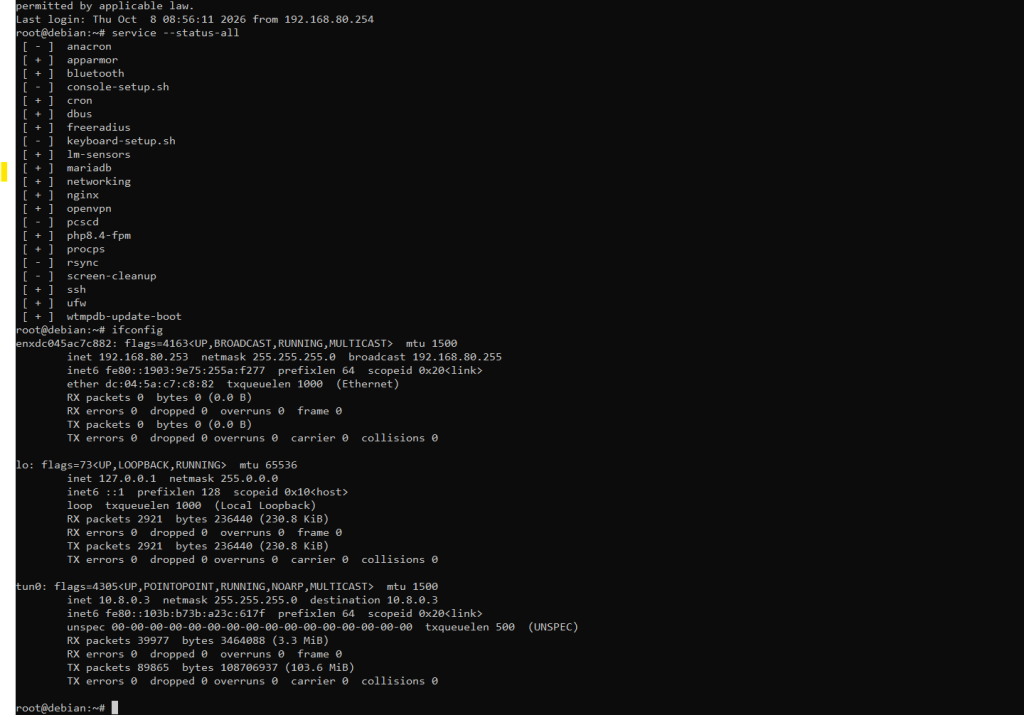
Accessing a computer from outside your home can be tricky, especially when your internet connection doesn’t have a public IP address. Instead of paying for a more expensive connection or exposing my computer directly to the internet, I decided to try a different approach: using a VPS and OpenVPN.
Connecting Home to the Internet Through a VPS
My setup uses a Virtual Private Server (VPS) as the entry point to my home network. Since my home connection doesn’t have a publicly reachable IP address, I can’t simply connect to my PC from anywhere.
To work around this, I set up an OpenVPN tunnel between my home network and the VPS. My home computer establishes an outbound connection to the server, allowing me to reach it remotely through the VPN.
The VPS acts as a bridge between my remote device and my home PC. Instead of exposing my computer directly to the internet, I can use the private connection to access it from outside my home.
This setup gives me more flexibility and control over how I connect to my own devices, even when my home internet connection doesn’t support direct inbound access.
My Next Project: A Self-Hosted Password Manager
Now that I have a working VPN connection, I want to use it for something more personal: hosting my own password manager at home.
Password managers store some of our most sensitive information, including account credentials, secure notes, and other private data. While established password management services can be convenient, I like the idea of managing my own setup.
By hosting a password manager on my home PC and accessing it through OpenVPN, I can keep its service off the public internet and limit access to devices connected through my private network.
I’m considering this approach because it gives me more control over where my data is stored and how I access it. Instead of making the password manager publicly accessible, I can connect to my VPN first and then reach the service privately.
Of course, self-hosting doesn’t automatically make something more secure. I’ll still need to keep the software updated, use strong authentication, protect the encryption keys, and maintain encrypted backups. If my home PC goes offline, I may also lose access until it’s available again.
Still, the extra control and privacy make this an interesting project to explore.
What’s Next?
This setup is just the beginning. I’m interested in finding more ways to use my home network for practical projects without relying on expensive hardware or exposing everything directly to the internet.
Note: My next planned project is to use an ESP board to remotely turn appliances on and off. The goal is to build a simple system that lets me control selected devices remotely, potentially integrating it with my existing network setup. I’ll also need to consider electrical safety and use properly rated switching hardware.
For now, I’m happy to have a way to reach my home PC remotely. What started as a workaround for not having a public IP is becoming the foundation for a more private, self-hosted home lab.
